Select to Speak

A tool that reads aloud highlighted on-screen text, offering a simple text-to-speech option without requiring a full-screen reader.
Dictation

Dictation allows users to convert spoken words into text in any text field across the device.
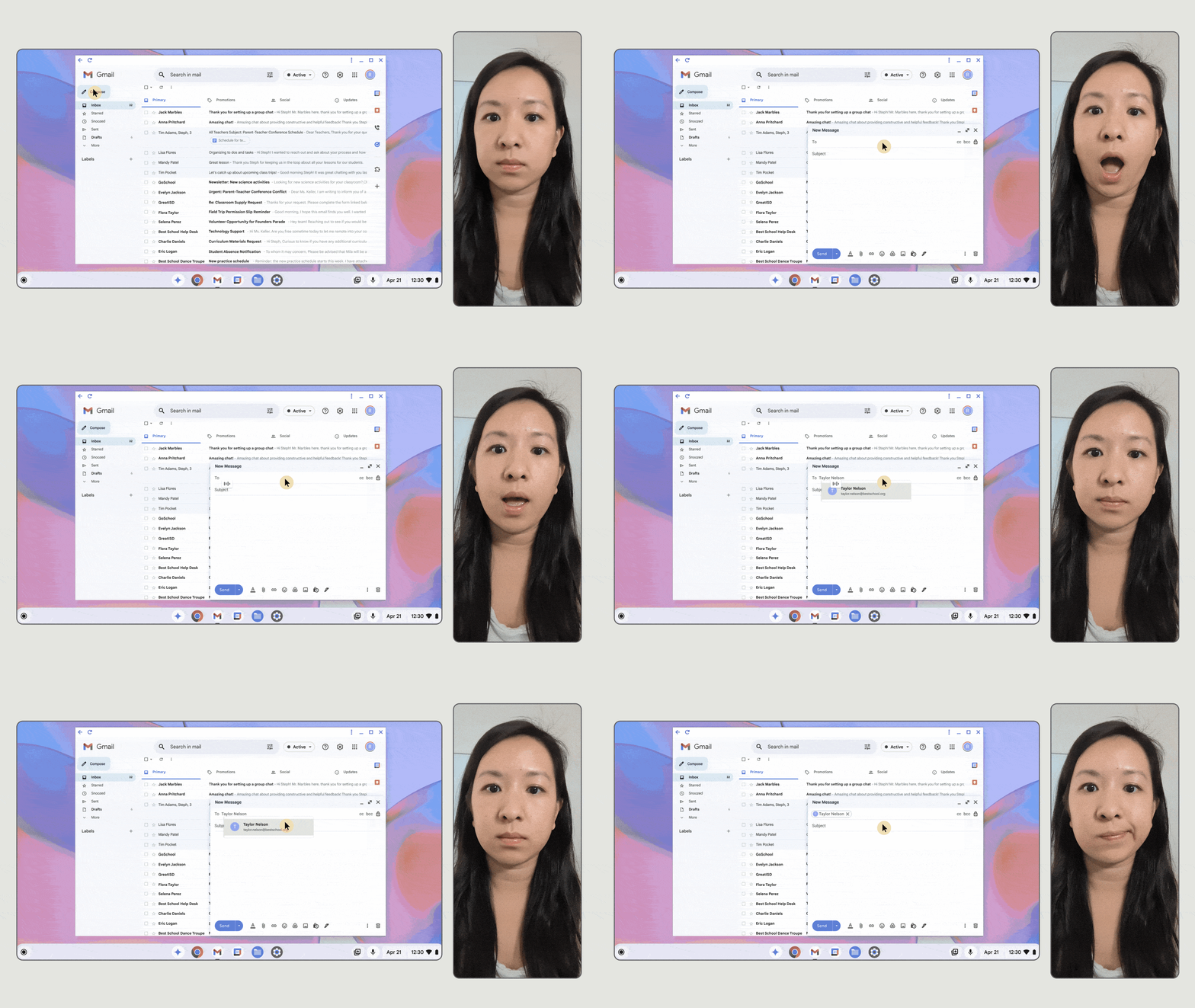
Face Control

A tool enabling users to control the mouse cursor and perform actions using head movements and facial gestures.
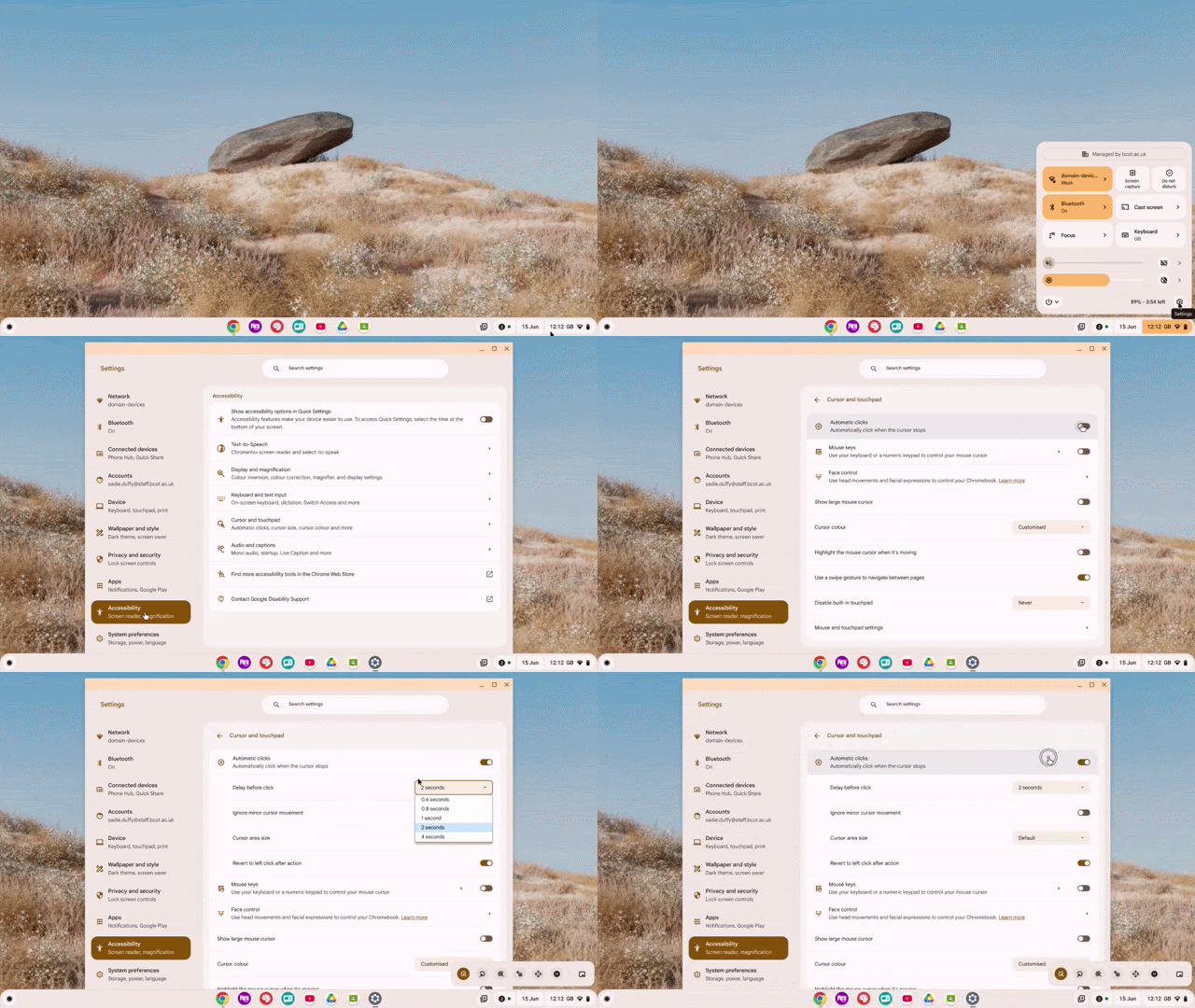
Automatic Clicks

Automatically performs a click action when the cursor hovers over an item for a set duration.
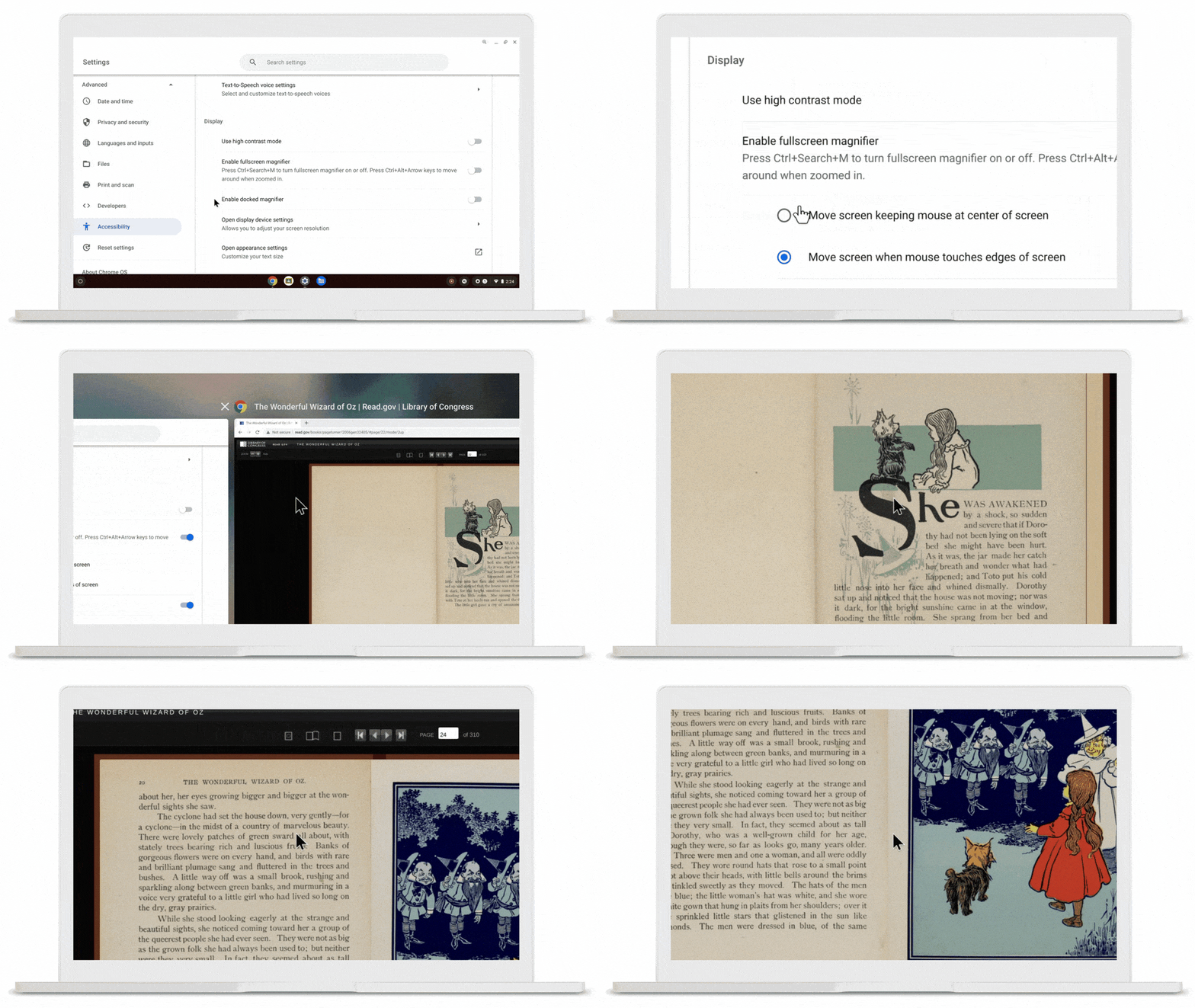
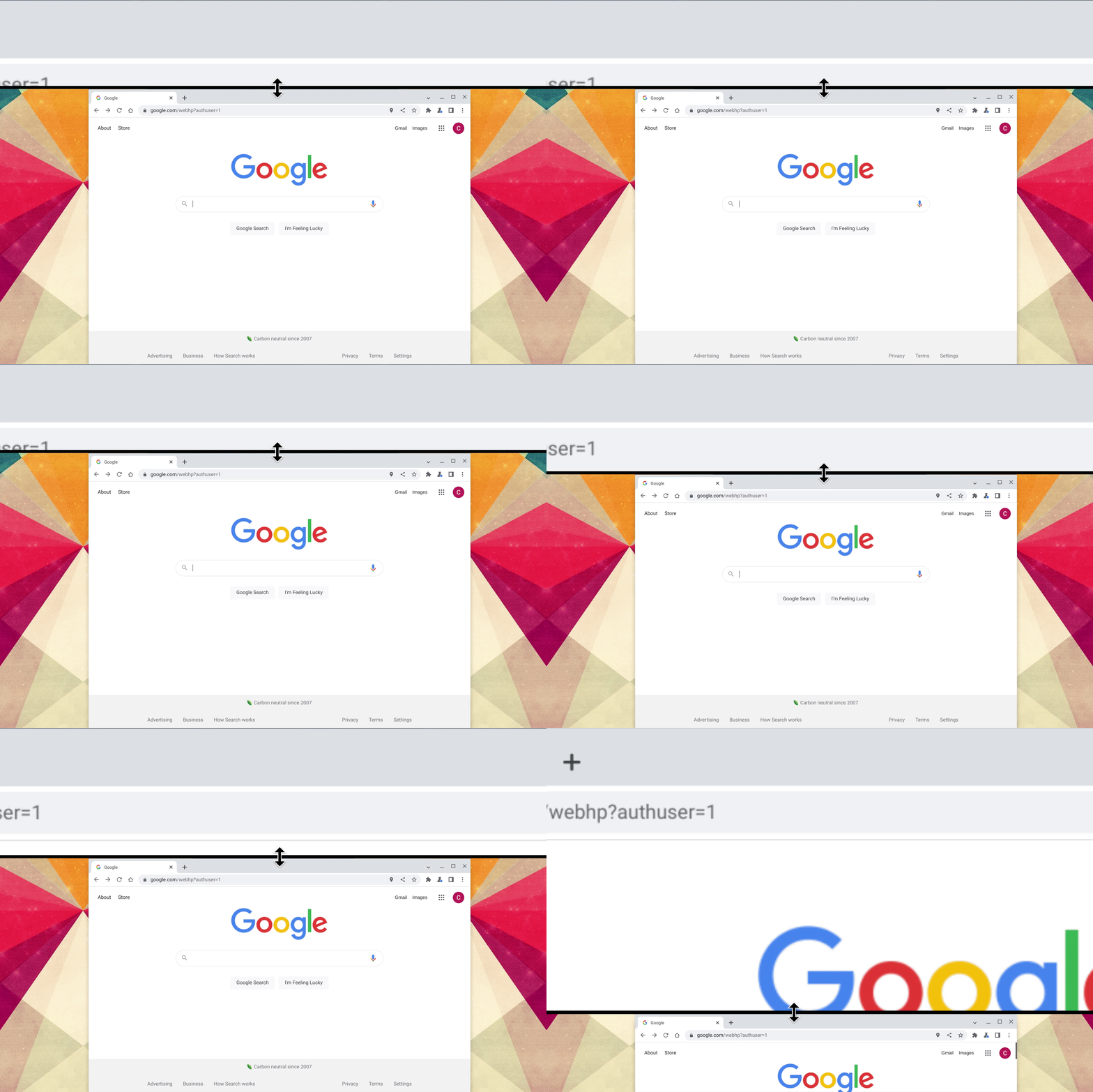
Full-Screen Magnifier

A tool that magnifies the entire screen, enabling users to zoom in and navigate the full desktop for improved visibility of all content.
Docked Magnifier

A tool that magnifies a small screen area in a docked window, showing a zoomed-in view around the cursor while the rest of the screen stays at normal size.
Live Captions

Automatically generates real-time captions for any audio or video played in the Chrome browser.
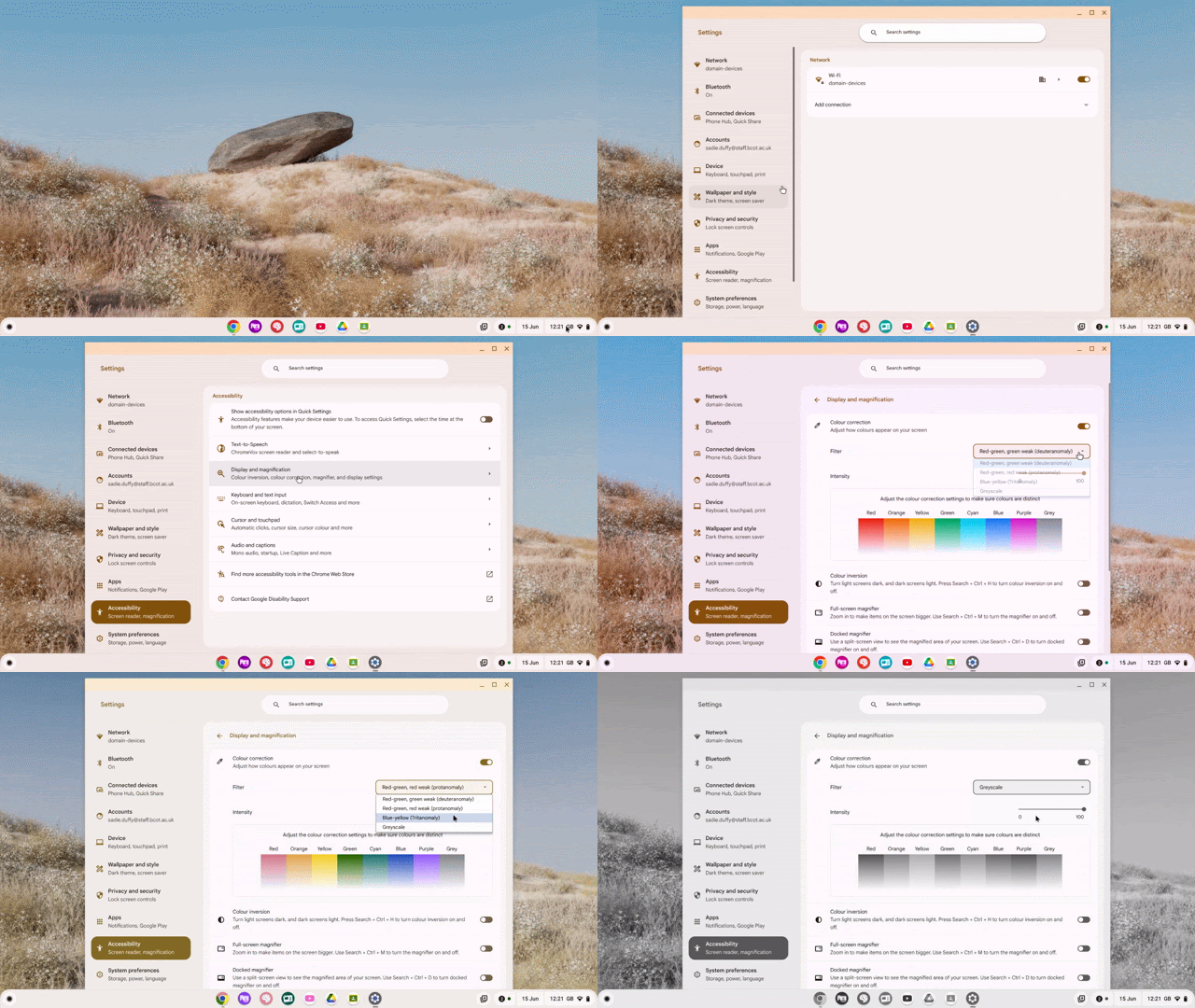
Colour Correction

A filter tool that adjusts screen colours to aid users with conditions like protanopia, deuteranopia, or tritanopia in distinguishing colours more effectively.
Gemini

Google Gemini is an AI tool to help you. Think of it like a smart assistant that can give you ideas, summarise info, or help you understand things.
Here are some ideas on how to use AI in education:
-
Got a long article or textbook chapter? AI can quickly pull out the main points.
-
If something isn't making sense, AI can explain it in different ways or use analogies.
-
Stuck on a project or essay? Ask AI to give you a fresh start with ideas, angles, or even an outline.
-
Get mock interview questions and even practise your answers with the AI's voice feature.
-
Need a study timetable or help breaking down a big assignment?
When we talk about using tech (especially AI), we live by these C.O.R.E values:
-
COMPASSION:
Be kind and thoughtful online.
-
ORIGINALITY:
Using technology I to help your unique ideas shine, not copy others.
-
RESPONSIBILITY:
Using technology wisely, ethically, and safely.
-
EMPATHY:
Think about how your online actions affect others.
Remember! Using AI to write your work for you is a big no-no. We want your ideas. Don't let AI make you lazy!
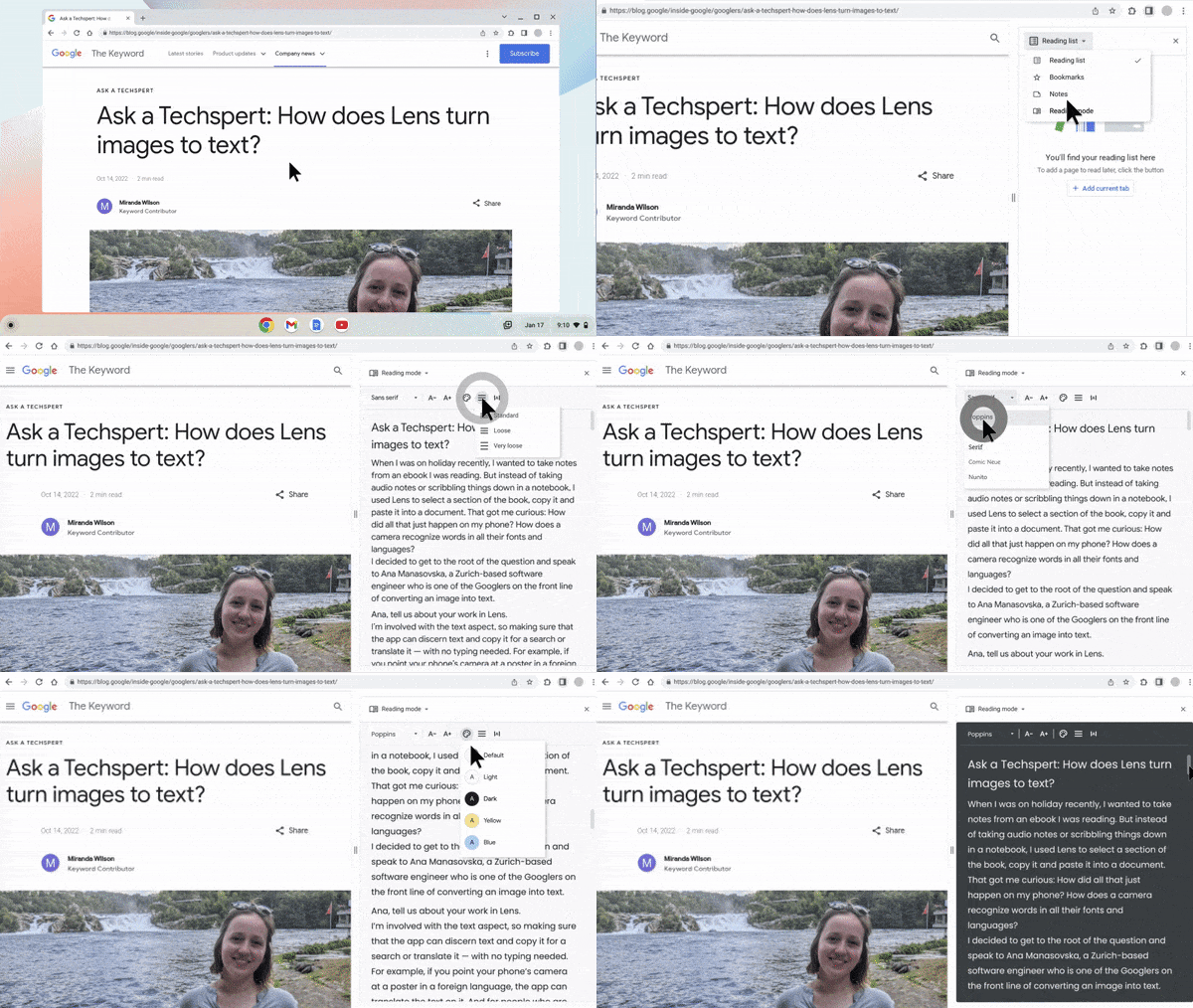
Reading Mode

A tool on Google Chrome that removes any other distracting media from a page, leaving only the text.
Google Translate
Google Translate lets users instantly convert text, speech, entire documents, and web pages across over 240 languages.
Click the icon to open this tool.